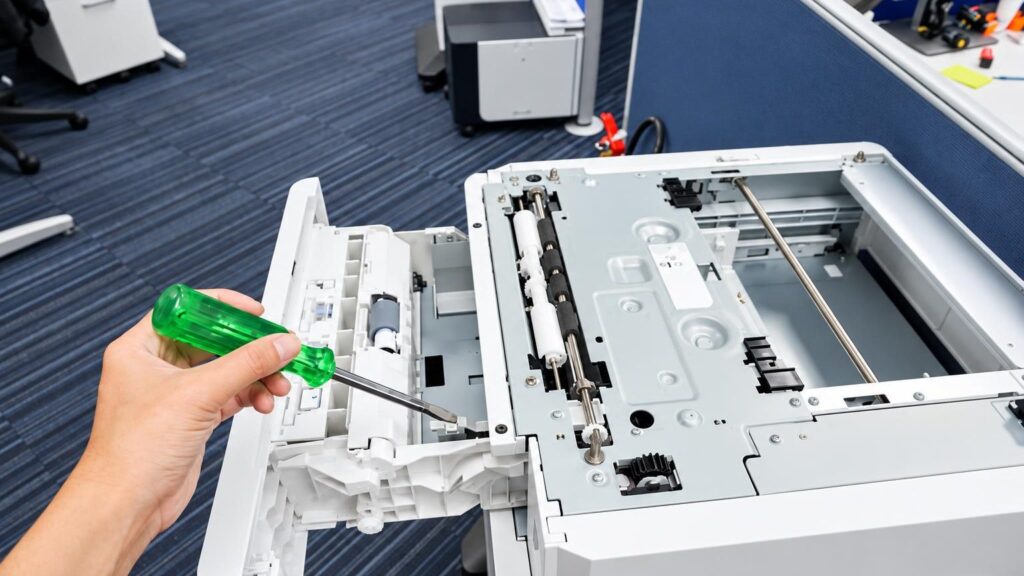
People usually describe not the part but the symptom: “it doesn’t work”, “it doesn’t pick up paper”, “it prints streaks”. Below are the most common symptoms, their likely causes and what we do. If your printer has a scanner, also check the scanning function – it is a separate component that can fail independently.
01from 20 €
Printer not working – does not respond to print jobs
WhyMost often the device itself is not at fault, but the connection: a changed “Wi-Fi” password, an old driver after a system update, or a stuck print queue. Less often, the main board or power supply unit is faulty.
Check it yourselfTurn off the printer and the computer, wait a minute and turn them on again. Check the USB cable or network connection and delete stuck jobs from the print queue. If that does not help, do not try to open the casing.
What we doWe check the connection, drivers and software, and then the electronics.
02from 25 €
Printer does not pick up paper
WhyWorn rubber parts of the pick-up rollers lose their grip and just spin idly. Paper may also fail to feed because of damp sheets, too much paper in the tray, or a foreign object that has become lodged inside.
Check it yourselfRemove the paper, fan the sheets so they do not stick together, and load no more than the marking allows. With the printer unplugged from the mains, gently wipe the visible rollers with a damp, lint-free cloth.
What we doWe clean or replace the pick-up rollers and check the separator pad and the tray mechanics. After the repair we print test pages until we are sure the paper is picked up evenly.
03from 30 €
Paper jams or sheets come out crumpled
WhyThe cause is a dirty or worn paper path, a broken feed roller, debris inside, or a fuser unit problem if the printer is a laser model. A common case is a small scrap of paper that has become stuck.
Check it yourselfPull the sheet out slowly and in the direction it travels through the printer, so that it does not tear. Do not use sharp tools and do not touch the fuser unit until it has cooled down.
What we doWe clean the entire paper path, remove debris, replace broken rollers or gears, and check the fuser unit.
04from 25 €
Blank or streaky prints
WhyIn a laser printer, the toner usually runs out, or the drum or cleaning blade wears out. In an inkjet printer, the cause is dried ink on the printhead nozzles, especially if the printer has not been used for weeks.
Check it yourselfRun the printhead cleaning function in the device menu no more than twice in a row. With a laser printer, you can carefully shake the cartridge, but do not open it.
What we doWe determine whether the toner component, the drum or the printhead is at fault. We clean or replace the drum, clean the inkjet printhead and, if necessary, replace other worn parts. For the cartridge itself, you can contact a cartridge refilling service.
05from 25 €
The printer prints only in black and white or without one color
WhyIn an inkjet printer, the nozzles of one color are clogged or there is trapped air in the system. In a color laser printer, the drum of one color is worn out or a sensor is faulty and falsely indicates that the toner has run out.
Check it yourselfCheck that the cartridges are inserted correctly and that the toner level is not actually low. Run one printhead cleaning cycle from the device menu.
What we doWe deep-clean the printhead and check the ink or toner supply path and the sensors. If the printhead can no longer be repaired, we tell you after the diagnostics so that you can compare it with the price of a new printer.
06from 30 €
Printer with scanner does not print or scan
WhyIn a multifunction device, the scanner and the printer have separate mechanisms. A scanning error is often caused by a dirty glass, a broken flat cable under the moving scanning module, or a software error.
Check it yourselfWipe the scanner glass with a soft cloth and check that the lid closes firmly. Try scanning a different document.
What we doWe check the scanning module, the cables and the software, as well as the printing section. We repair only the unit that is actually faulty.
07from 50 €
Laser printer leaves smudges, black streaks or the toner rubs off
WhyMost often the cause is a worn fuser unit, a damaged drum or a full waste toner container. Recurring marks at regular intervals indicate that the defect is in a specific roller.
Check it yourselfPrint a test page and see whether the marks repeat at regular intervals. Do not touch the fuser unit or the drum with your hands, as they are hot after printing and the drum is sensitive.
What we doWe replace the drum or the fuser unit, clean the paper path and check that other parts are not contaminated with toner.
08from 45 €
The printer does not turn on or turns off by itself
WhyThe power cable may be faulty, the power supply unit burnt out, the board damaged, or there may be a short circuit after liquid got inside. There is high voltage inside, so you should not attempt to repair it yourself.
Check it yourselfCheck that the socket works and try another cable, if you have one. Connect the printer directly to a wall socket, not to an extension cord.
What we doWe measure the power circuits, diagnose the units and the board, resolder faulty components, and replace units or boards.
09from 20 €
Error after replacing the cartridge or the device does not detect the cartridge
WhyThe chip is not recognized, the contacts are dirty, the software is unsuitable, or the manufacturer’s protection against non-original cartridges is overly strict. Sometimes the problem is not the cartridge but the contact group in the printer.
Check it yourselfRemove the cartridge and firmly reinsert it, and make sure the protective strip has been removed. If the cartridge has been refilled, try an original or another cartridge to understand where the problem lies.
What we doWe check the contacts, sensors and software and eliminate the error if it can be fixed. For cartridge refilling, see the cartridge refilling service.
10from 20 €
Printer is visible on the Wi-Fi network but does not print
WhyAfter a router is replaced or updated, the printer may get a different IP address while the computer still sends the job to the old address. A firewall or an incompatible driver may also interfere.
Check it yourselfTurn the router and the printer off and on, and make sure both are connected to the same network. Try printing from another device. If your computer is behaving strangely, see computer repair.
What we doWe reconfigure the network settings, install the correct driver and, if necessary, update the software.